![Unific-Logo-Purple-1.svg]](https://help.unific.com/hubfs/Unific-Logo-Purple-1.svg)
Prerequisites
Before creating the Store-Level View, ensure that you have access to the Companies section in HubSpot and permission to create and manage views.
Steps to Create a Store-Level View
Step 1: Navigate to Companies
- Log in to your HubSpot portal.
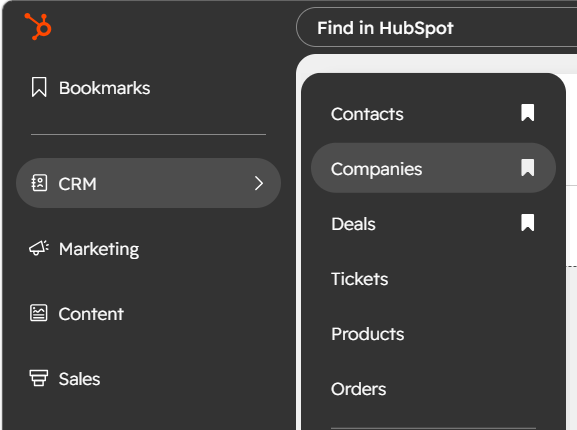
- Navigate to CRM → Companies.
Step 2: Add a New View
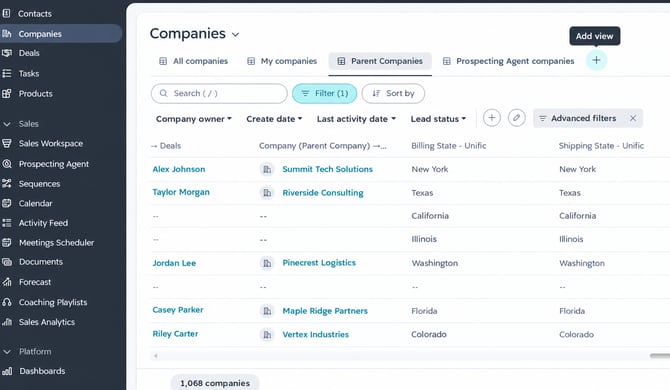
- At the top of the Companies page, click Add View.
 b. From the Add View window, select Create New View.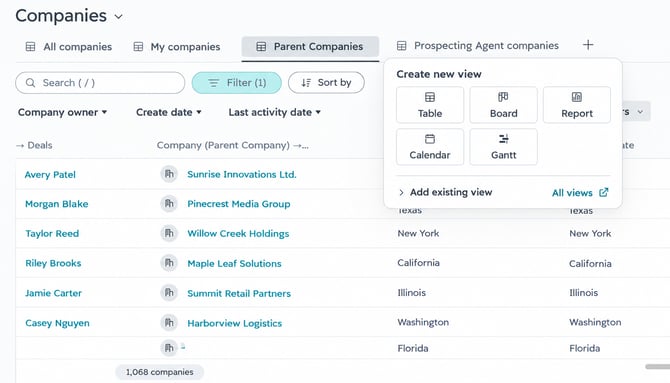
Step 3: Name the View and Set Access
1. Enter a descriptive name for the view.
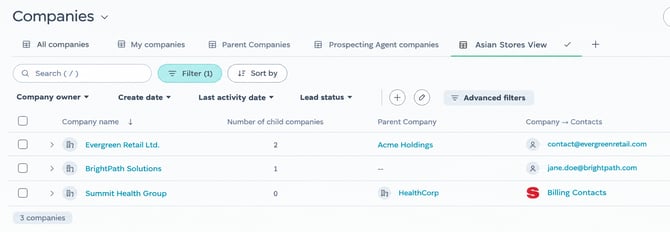
Example: Store-Level View - Example Shopify Store
2. Select the appropriate Access level based on your requirements.
3. Click Confirm.
Step 4: Configure Advanced Filters
- Click Advanced Filters.
- Add the following filter conditions:
PropertyFilter ConditionValueSync IDis known—Store ID - Unificcontains exactlyhttp://example.myshopify.comStore Company ID - Unificis known—
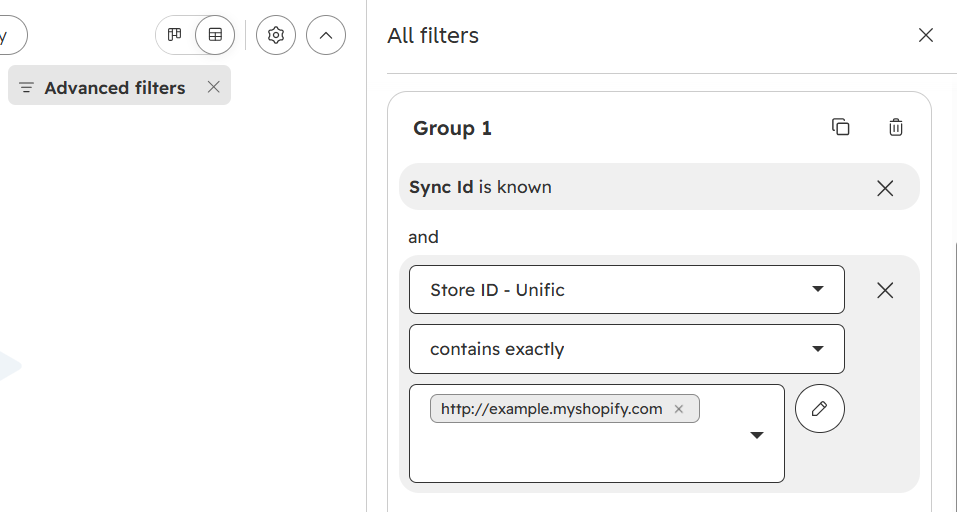
Note: Replace http://example.myshopify.com with the actual Store ID/Shopify store URL for the store you want to create the view for.
Step 5: Save and Verify the View
- Review the configured filters.
- Click on the Gear icon and Save the view.
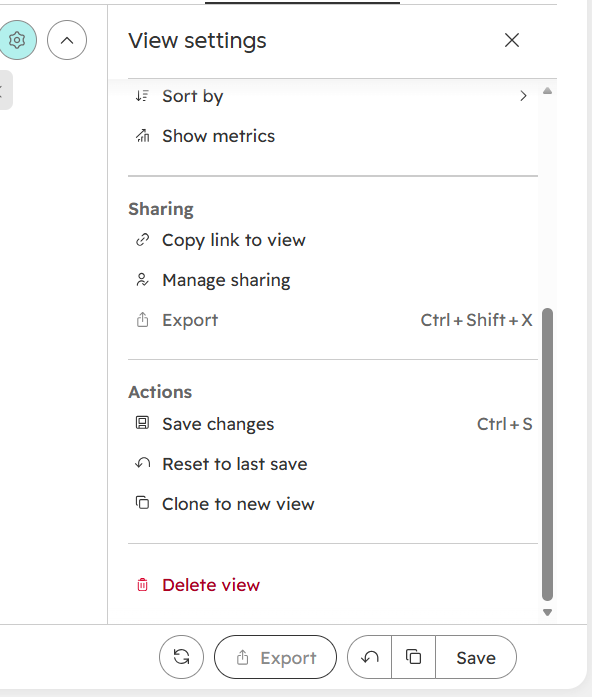
- Verify that the Companies displayed in the view belong to the intended store.
- If necessary, adjust the filters to ensure that only the required store-level companies are displayed.
Expected Result
Once configured, the Store-Level View will display company records that meet the specified criteria:
- Sync ID is known.
- Store ID - Unific matches the specified store.
- Store Company ID - Unific is known.
This view can then be used to quickly identify and manage companies associated with a specific store.
Once configured, the Store-Level View will display company records that meet the specified criteria:
- Sync ID is known.
- Store ID - Unific matches the specified store.
- Store Company ID - Unific is known.
This view can then be used to quickly identify and manage companies associated with a specific store.
- At the top of the Companies page, click Add View.