![Unific-Logo-Purple-1.svg]](https://help.unific.com/hubfs/Unific-Logo-Purple-1.svg)
Did you skip connecting your Shopify Account during your initial set-up? No problem. Here’s how to do it quickly and easily:
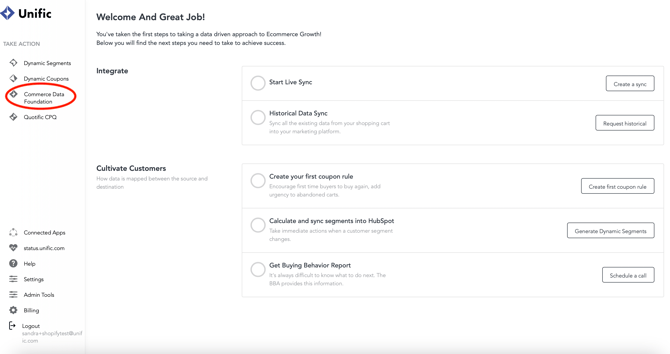
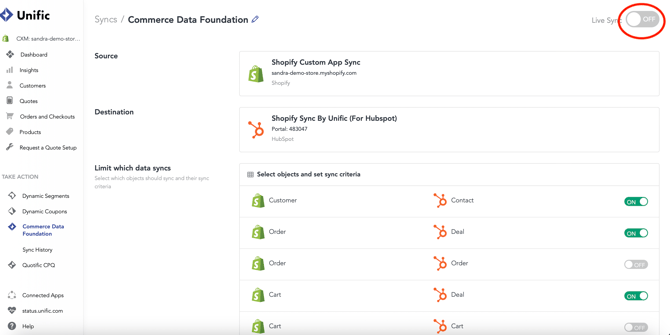
- From Unific, click on "Commerce Data Foundation"
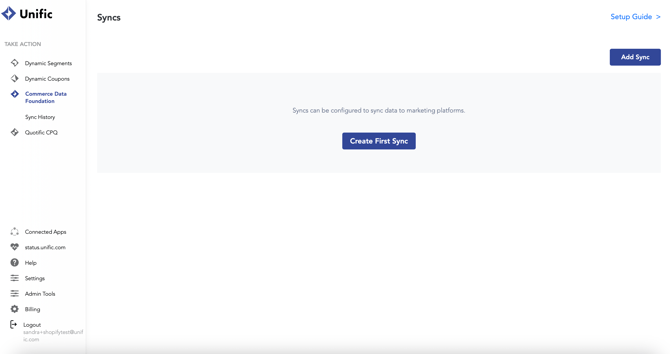
- Click on “Create First Sync”
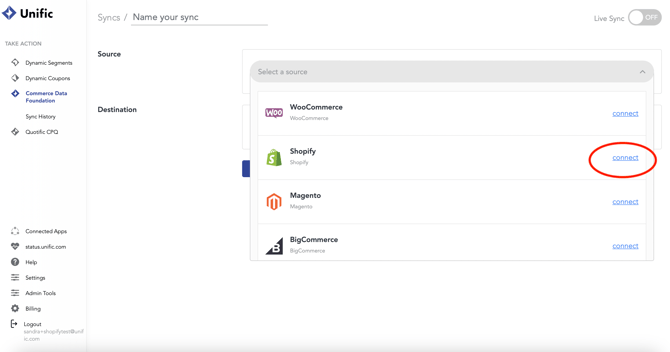
- Next to "Source" click the drop-down.
- A list of shopping carts should show up
- Click "Connect" next to Shopify
- A popup will appear and give you instructions on creating a custom app.
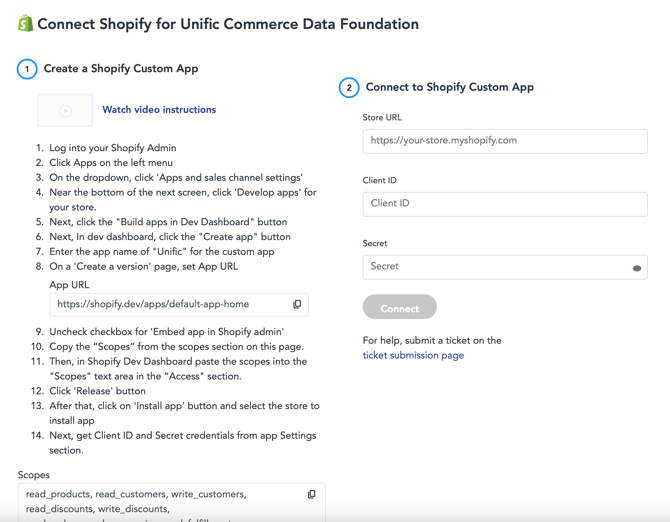
- Follow the instructions shown on the page to add a custom app
- After Shopify is connected you may click the drop-down for the "Destination" and select which platform you want to sync the data to. Choose HubSpot.
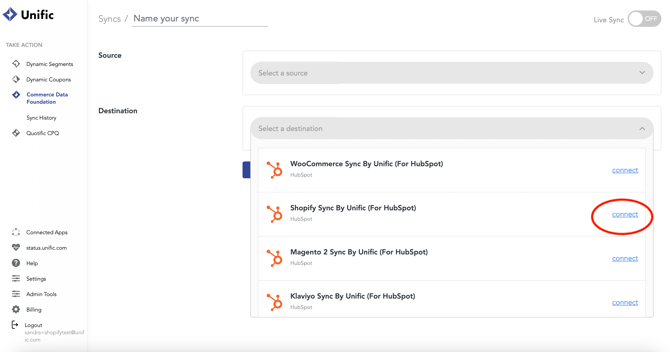
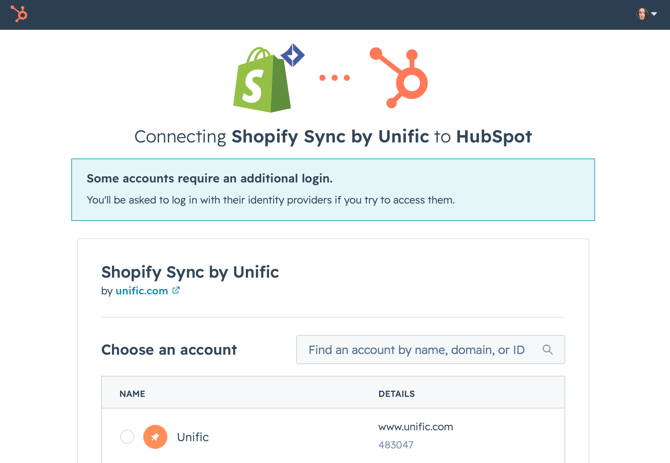
- A pop will appear enabling to choose your HubSpot portal.
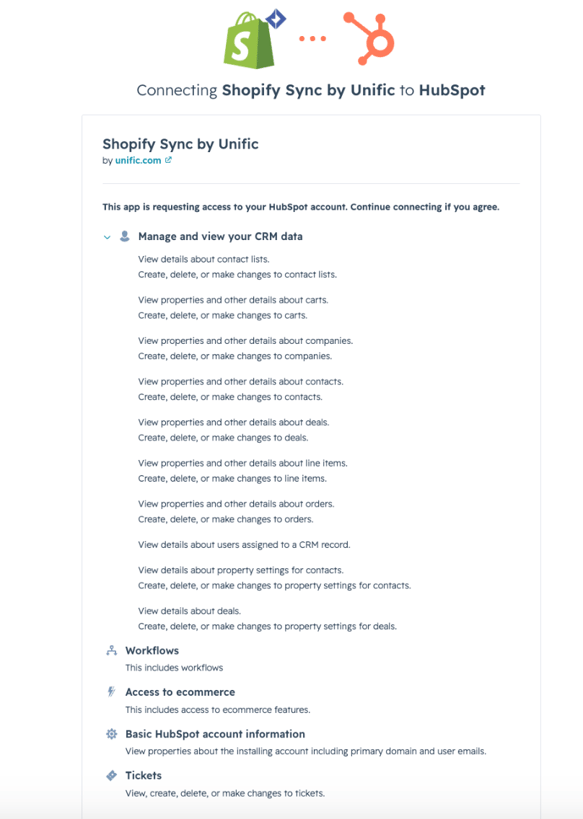
- Confirm the connection in the next screen. Make sure to review the scopes allowed in HubSpot .
- Finish the set up by naming your sync and clicking Save.
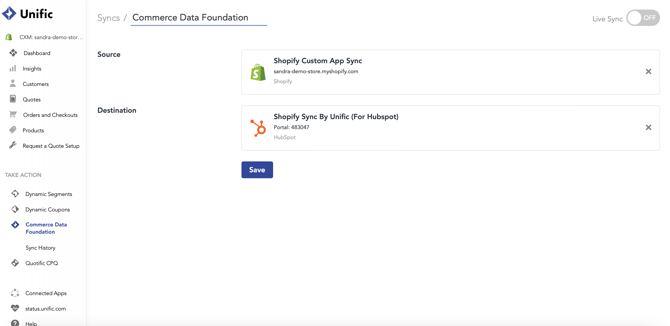
- Turn your Live Sync On.
- After connection, you can test and confirm that the expected data is syncing by logging into HubSpot. You can review our follow up articles here on how to do so.